

Prerequisites
- A Make account
- An Assess API key (Starter+) from Developer → API Keys — see Authentication
Setup guide
1. Create a scenario
In Make, open Scenarios → create a new scenario. Click the purple + on the canvas to add the first module.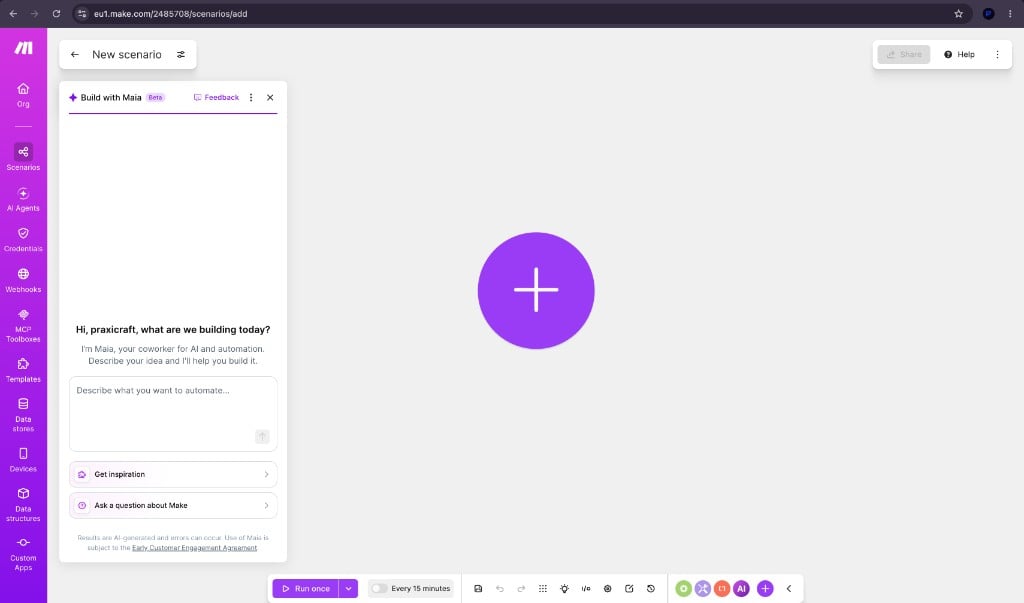
New Make scenario — add the first module
2. Search for Praxicraft Assess
Typepraxi (or Praxicraft) in the search box. Select Praxicraft Assess, then pick a module (for example List Integrations or Invite Candidate). Private Custom App modules show a Private tag until the app is approved for the public catalog.
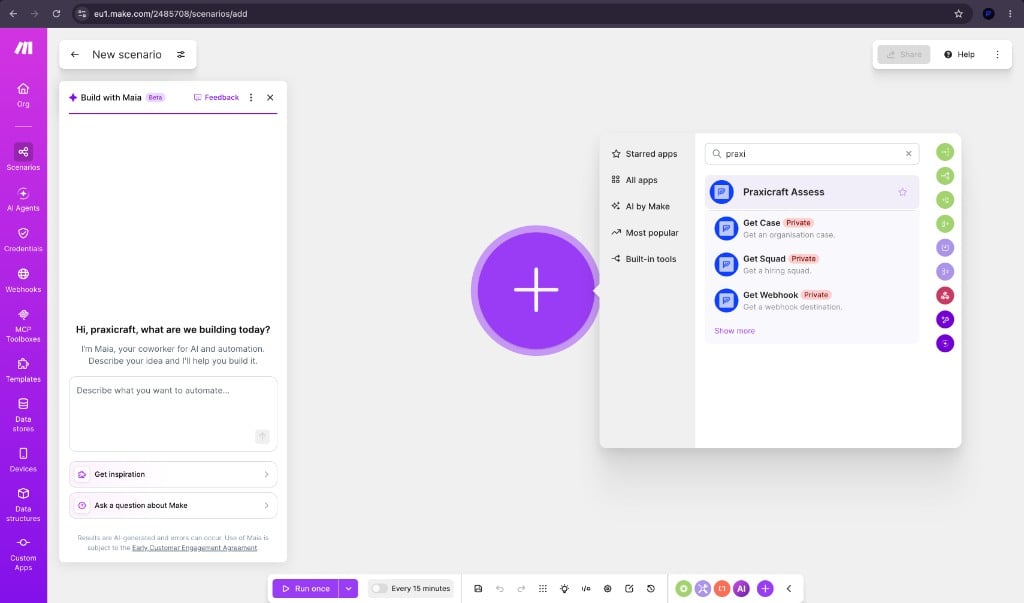
Search results showing Praxicraft Assess
3. Confirm organisation install
The first time someone in your org uses the app, Make asks you to install it for the organisation. Confirm Yes so the app is available to your teammates.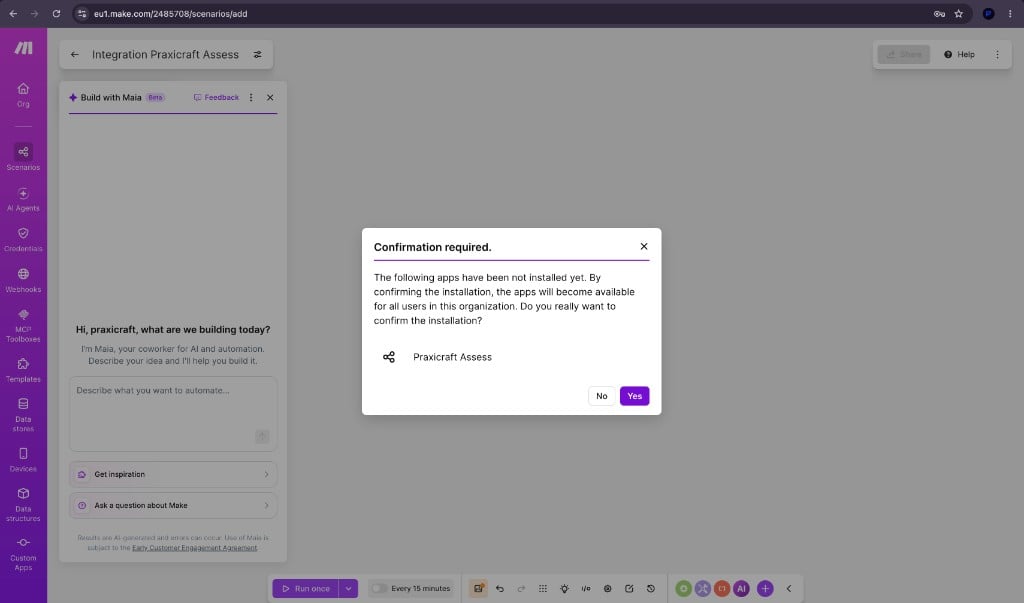
Confirm installation of Praxicraft Assess for the organisation
4. Create a connection
On the module, open Connection → Create a connection.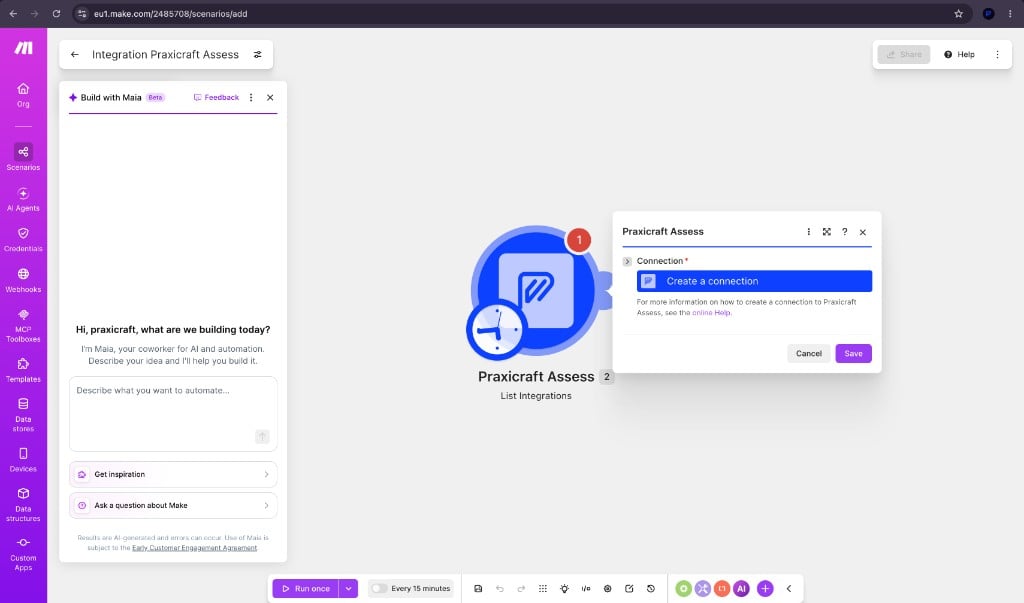
Module settings — create a Praxicraft Assess connection
5. Paste your Assess API key
- Create an API key in Assess (Developer → API Keys).
- In Make, set Connection name (optional rename).
- Paste the key into API Key. Keys start with
ct_live_(live) orct_test_(test). - Leave Base URL as
https://assess.praxicraft.comunless you use a custom host. - Click Save. Make tests the connection with
GET /org/(needsorganisation:reador a full-access key).
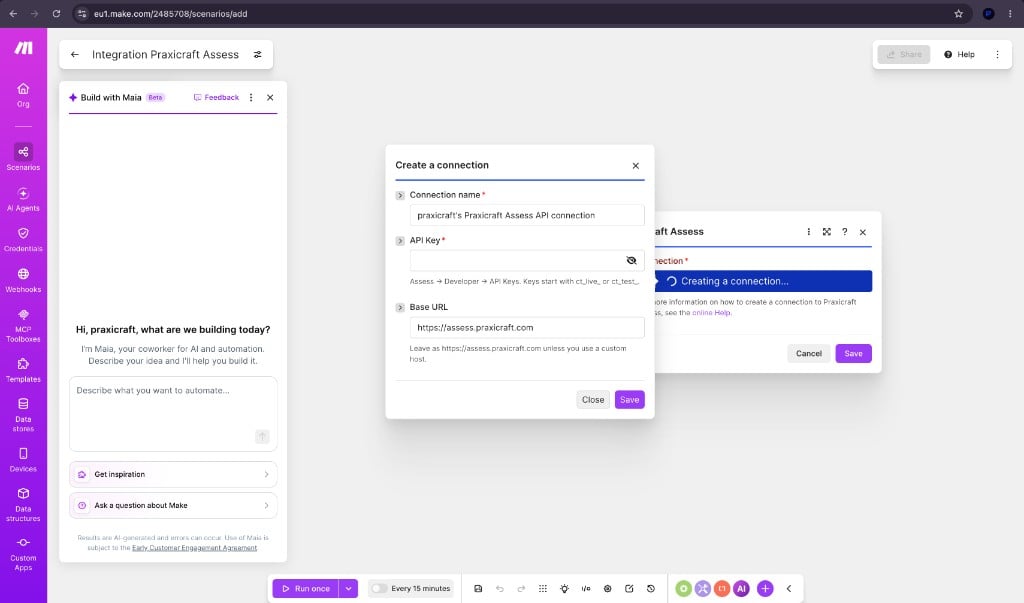
Create a connection — API Key and Base URL
6. Save the module
After the connection succeeds, select it on the module and click Save.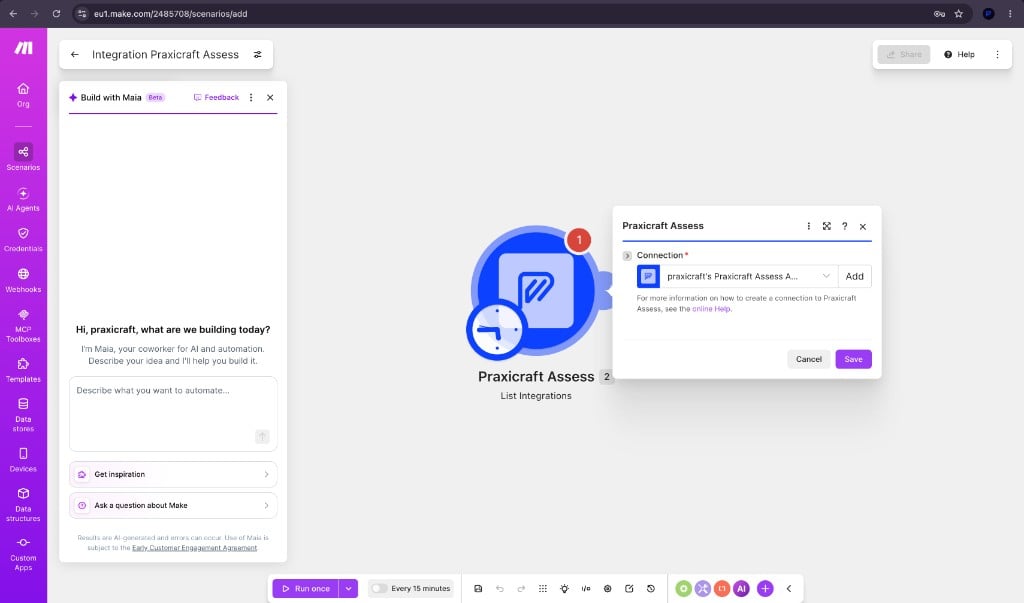
Connection selected on List Integrations
7. Invite a candidate
Add Invite Candidate:- Assessment slug
- Optional name, send email, expires days, external id (ATS)
invite_token and invite URL fields from the Public API.
8. Watch Assess events
Add Watch Assess Event (instant). Pick one event (for examplecandidate.passed or assessment.completed).
When the scenario is activated, Make registers an Assess webhook (POST /webhooks/create/) and receives signed deliveries. webhook.test pings are ignored.
Common modules
Full list: same surface as Zapier / n8n.