

Prerequisites
- A Zapier account
- An Assess API key (Starter+) from Developer → API Keys; see Authentication
Setup guide
1. Create a Zap
In Zapier, create a Zap. Skip Copilot and click the Trigger step.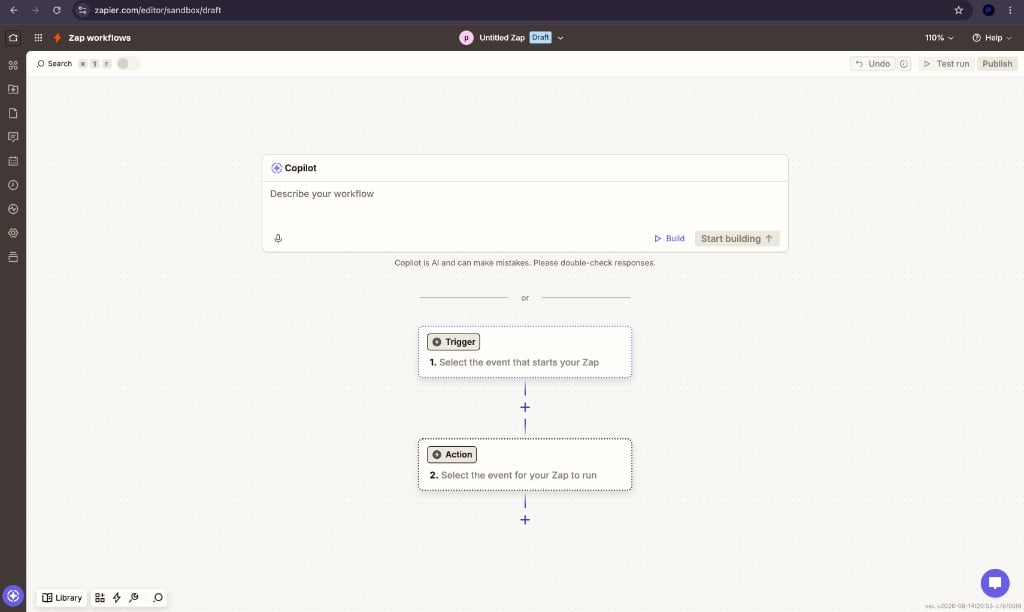
New Zap. start from the Trigger step
2. Search for Praxicraft Assess
Open Apps and typepr (or Praxicraft). Select Praxicraft Assess.
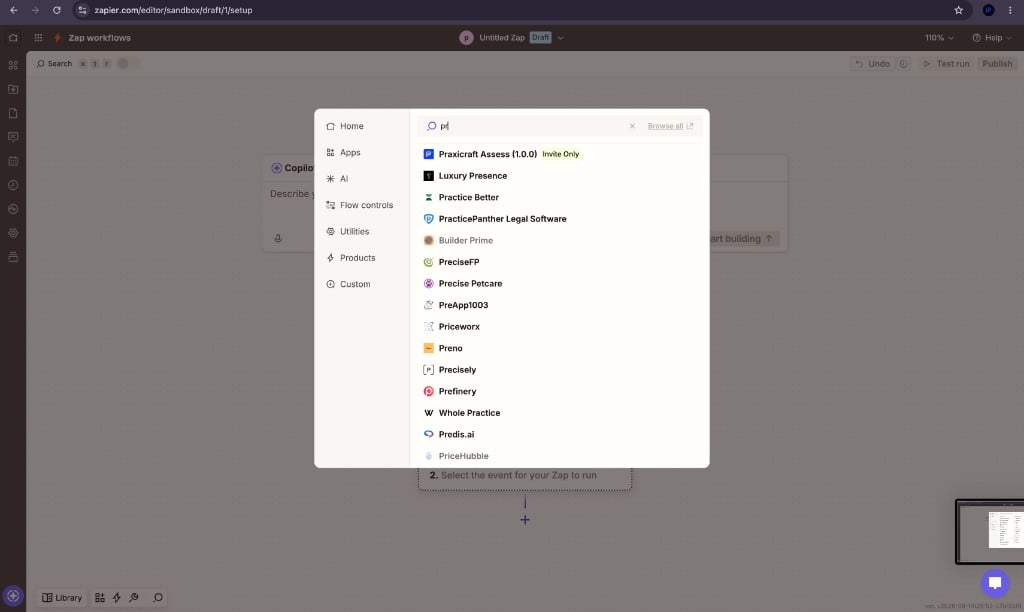
Zapier app search showing Praxicraft Assess
3. Choose the trigger
Set Trigger event to New Assess Event, then Sign In to connect Assess.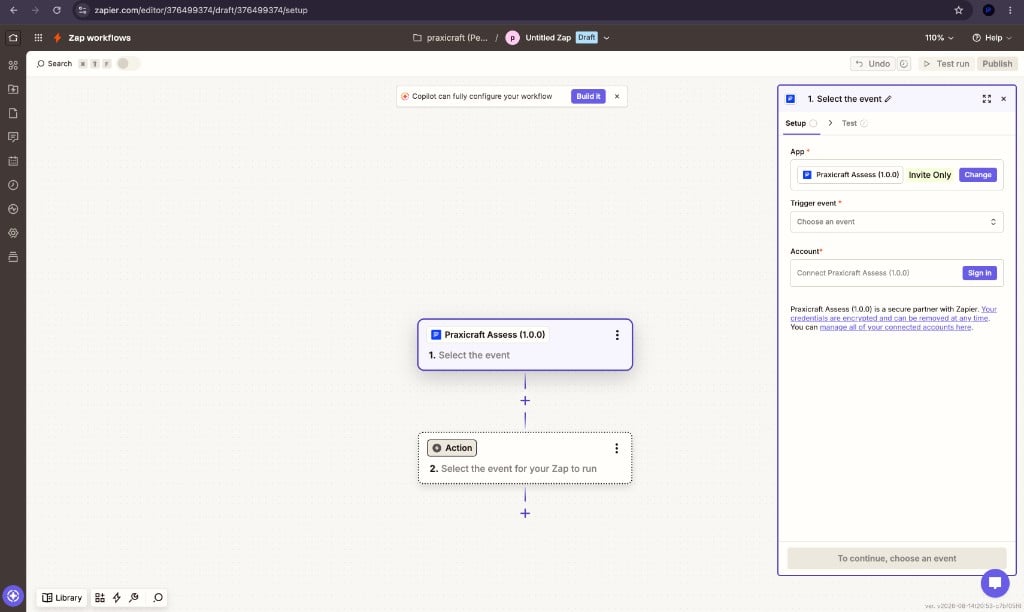
Select New Assess Event and sign in
4. Connect your account
Zapier opens Connect to Zapier:- Create an API key in Assess (Developer → API Keys).
- Paste it into API Key. Keys start with
ct_live_(live) orct_test_(test). Use a test key while you build the Zap so live candidates are not emailed. - Leave Base URL as
https://assess.praxicraft.comunless you use a custom host. - Click Connect. Zapier tests the connection with
GET /org/(needsorganisation:reador a full-access key).
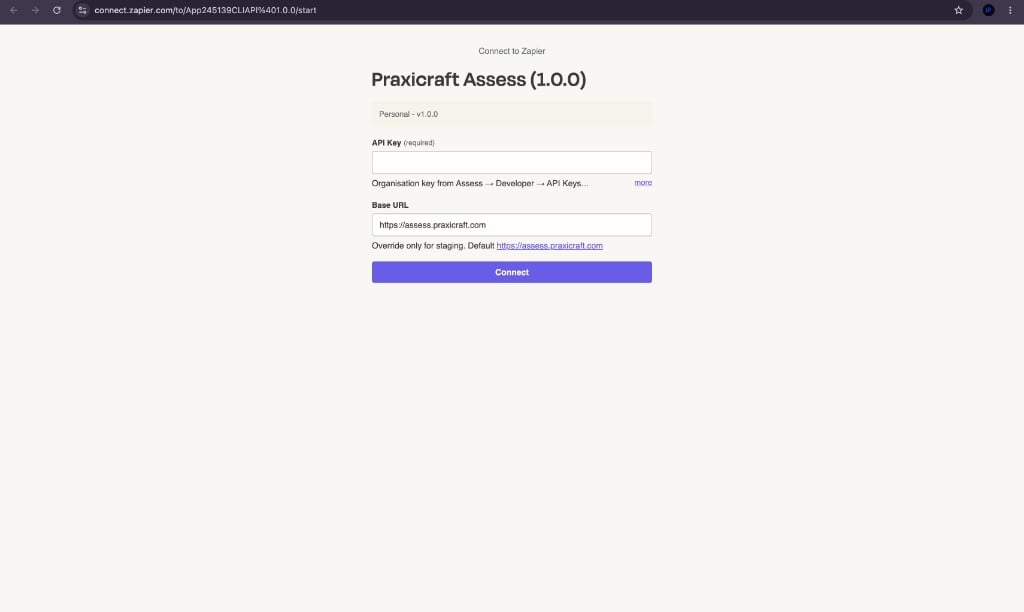
Connect Praxicraft Assess. API Key and Base URL
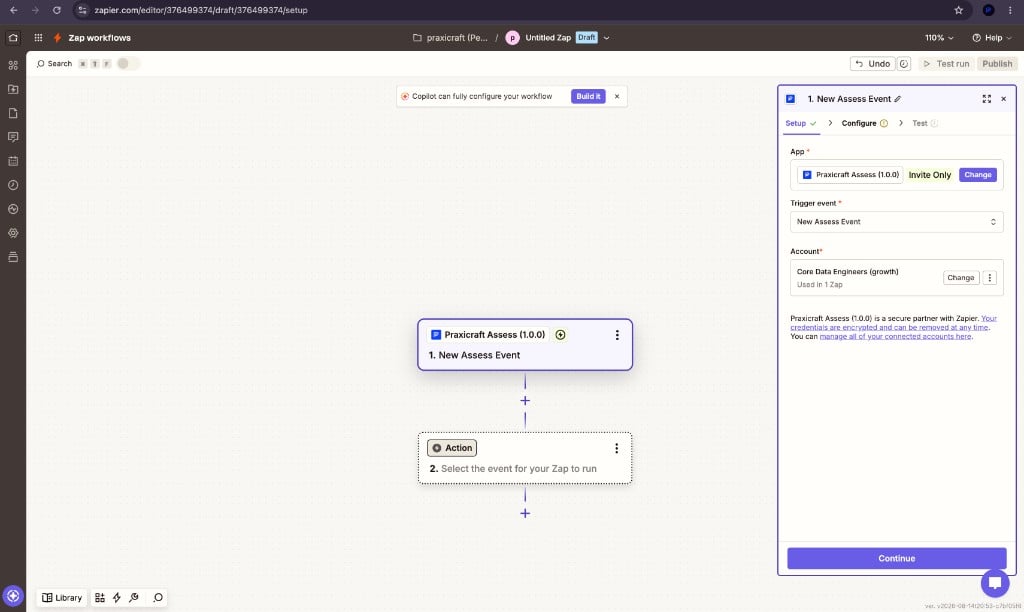
Trigger with Assess account connected
5. Pick the Assess event
On Configure, choose one event per Zap (for exampleassessment.completed or candidate.passed).
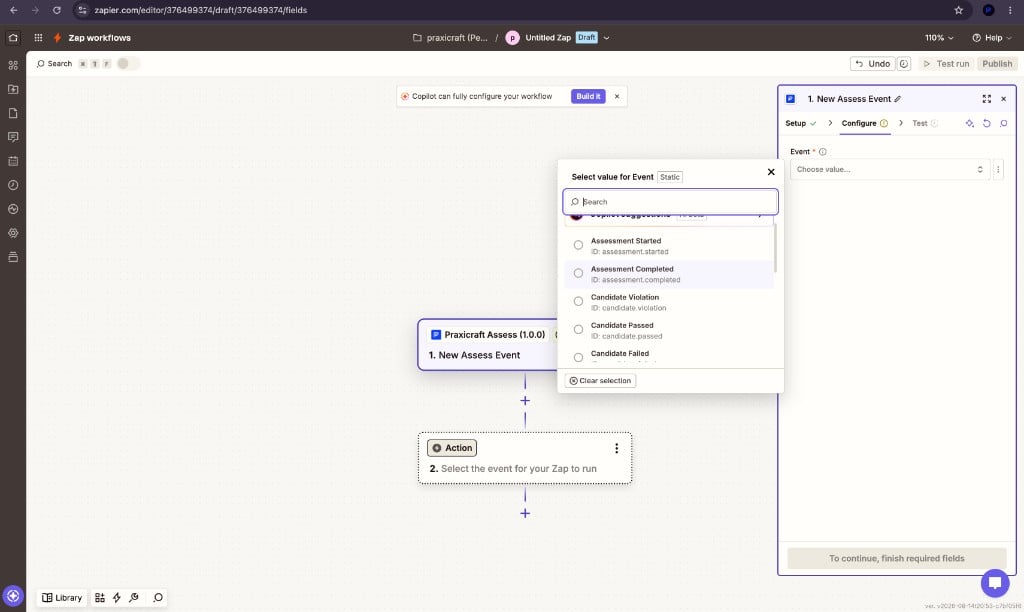
Event dropdown for New Assess Event
webhook.test pings do not run the Zap.
6. Add an action
Add a second step. Search Praxicraft Assess again to invite, enroll, or attach tasks, or pick Slack, email, or your ATS.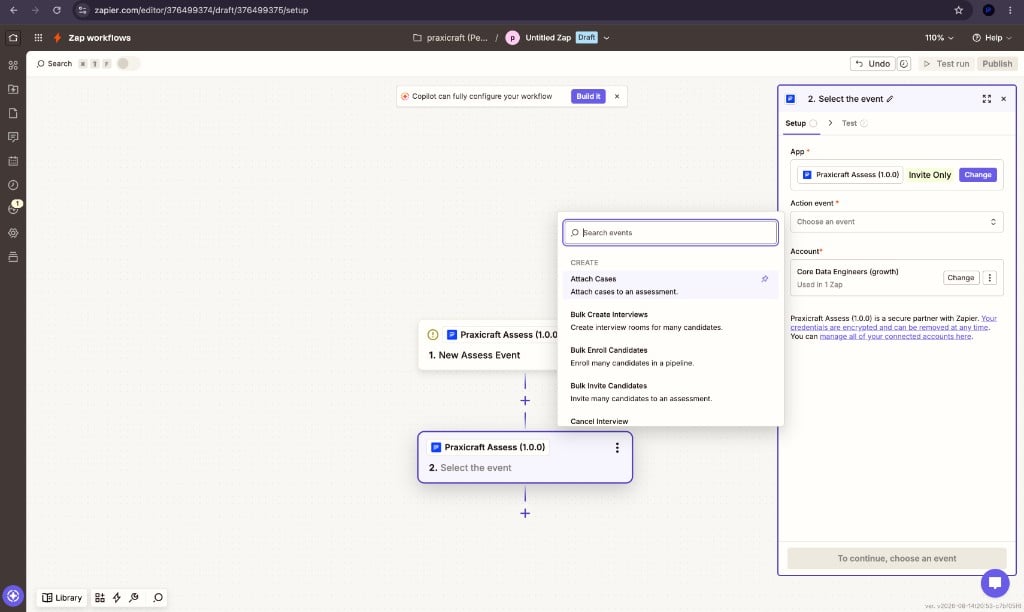
Praxicraft Assess actions in Zapier
7. Turn the Zap on
Inactive Zaps do not receive events. Turning a Zap off deletes the Assess webhook for that Zap.If you are recruiting / ops
You need a technical teammate once for the API key. After that, edit Zaps visually: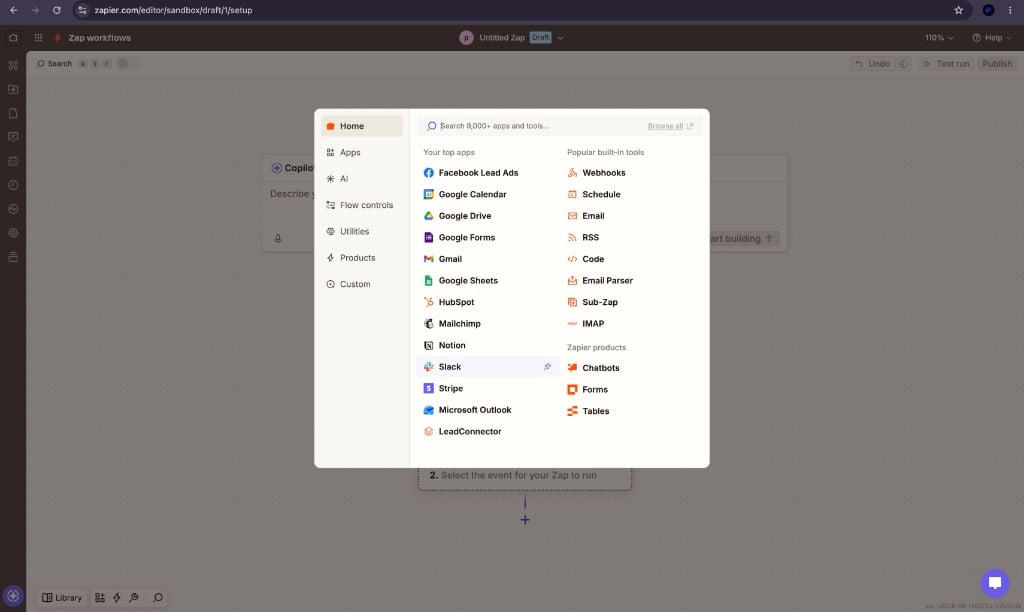
Add Slack as the Zap action
For engineers
Trigger behaviour
On enable:POST /webhooks/create/ with Zapier’s hook URL and the selected event, then POST /webhooks/{id}/test/: On disable, the destination is deleted. webhook.test pings do not run the Zap.
Assess still signs bodies (X-Praxicraft-Signature). Zapier owns the hook URL. treat it as a trusted destination. You do not need to verify HMAC inside the Zap.
High-value events: assessment.completed, candidate.passed / failed, pipeline.advanced / completed / rejected, interview.completed / analysis_ready. Full list: Webhooks.
Actions
Assessment, Case, Invitation, Pipeline, Webhook (including Retry delivery), Organisation, Interview, Integration. matching the n8n node and the Public API. Creates are writes; searches are GET / list. Destinations (HTTPS / Slack / Teams) use the Webhook resource. Optionalexternal_id on Invite Candidate stores your ATS candidate id so retries do not create a second invite.